Help & How-To Center
Step-by-step guides and answers for managing your shared vacation property
Step-by-step guides for every feature
Practical, step-by-step instructions for getting the most out of OurSharedPlace — whether you co-own a family cabin, a beach house, or any other shared vacation home.
Getting Started
Two ways to get everyone on board your shared vacation property: send personalized email invitations with assigned roles, or share a join code that lets people add themselves.
Read guideStep-by-step guide to drafting and storing a shared vacation property agreement in OurSharedPlace — usage schedules, expense splits, maintenance duties, voting rules, and exit strategies.
Read guideCalendar & Bookings
Every member's bookings show in their own color on the shared calendar. Members pick their own color in their profile, and property admins can override it for one property.
Read guideSet per-member annual booking quotas in OurSharedPlace so every co-owner of your shared vacation property gets fair access to peak weeks.
Read guideHow administrators handle booking requests in OurSharedPlace — approve, decline, see overlapping requests, and keep a fair history for your shared vacation property.
Read guideBooking request emails go to every admin of the property, and only when a booking needs approval. Here is who gets which email, when auto-approval skips it, and how to turn emails off.
Read guideHow to mark dates as unavailable for maintenance, contractors, or owner-only use on your shared vacation property in OurSharedPlace.
Read guideStep-by-step guide to running a fair round-robin booking queue for the high-demand season at your shared vacation property — turn-based date picking with email reminders.
Read guideProperty Setup
Build reusable checklists for departure, cleaning, winterizing, and spring opening at your shared vacation home. Step-by-step guide with screenshots.
Read guideHow to upload photos to the OurSharedPlace gallery for your shared vacation property, set a featured image, and share the gallery with co-owners and guests.
Read guideGuests & Access
Communication
Build a shared directory of plumbers, electricians, neighbors, and cleaners for your shared vacation home so any co-owner can reach the right person quickly.
Read guideEmbed walkthrough videos in your shared vacation home blog articles by uploading to YouTube as Unlisted, then pasting the link into an OurSharedPlace article.
Read guideFrequently Asked Questions
Quick answers to common questions about bookings, members, billing, and more.
Use your browser's search (Ctrl+F or Cmd+F) to find specific topics
Getting Started
After signing up and logging in, click "Add Property" from your dashboard. Fill in your property details including name, description, and address. You can add photos and additional details later from the property gallery.
Navigate to your property and click on the "Members" tab. Click "Invite Member" and enter their email address, first and last name, and select their role (Admin, Member, or Guest). They will receive an email invitation to join.
Administrators have full control and can manage members, approve bookings, and edit property details. Members can create booking requests, upload photos, and write blog posts. Guests have view-only access to property information.
Bookings & Calendar
Members can request bookings by clicking on dates in the calendar. Administrators must approve or decline these requests. Only approved bookings appear as confirmed on the calendar. This ensures fair scheduling among all co-owners.
Yes! Administrators can set annual booking quotas for each member in the Members section. This limits how many days per year each person can book, ensuring fair access to the property.
If multiple members request the same dates, administrators can see all requests and decide which to approve based on your group's policies. Rejected requests remain in the system for record-keeping.
Yes, administrators can create maintenance or blocked bookings directly on the calendar. These appear differently than regular bookings and prevent members from requesting those dates.
Click your avatar in the top right, choose Profile, and use the Calendar Booking Color picker. The picker shows the colors your co-members already book in and warns you when your pick is too close to someone else's, which is the usual reason a calendar becomes hard to read. Your color is yours across every property you belong to, and it changes everywhere as soon as you save — on the web and in the iPhone and Android apps.
Each member books in their own color, assigned automatically when they join and changeable any time from your profile. Some entries use a fixed color instead, so they read the same for everyone: a member's request that is still waiting for approval is light grey, maintenance is grey, a hold is dark grey, cleaning is amber, an outside guest's confirmed stay is purple, and dates you have offered to an outside guest are pale purple until they accept. The year view shows a legend for whatever appears that year.
Blog & Communication
Blog posts let you share updates, maintenance notes, how-to guides, and property news. You can add images and YouTube videos, use tags to organize posts, and control visibility (Admins only, Members+, Guests+ and Public).
Yes! You can embed YouTube videos in blog posts. This is great for creating video how-to guides (like "How to use the hot tub" or "Where to find the circuit breaker").
When creating a blog post, you choose the visibility level: Administrators only, Members and up, or Guests and up. This lets you control sensitive information while sharing useful updates with everyone.
Photos & Gallery
Go to the Gallery tab for your property and click "Upload Photos". You can select multiple photos at once. After uploading, you can set one photo as the featured image that appears on your property card.
The featured image is the main photo that represents your property on the dashboard. To set it, go to the Gallery, find your preferred photo, and click "Set as Featured".
Contacts & To-Dos
Store important contacts like plumbers, electricians, property managers, neighbors, cleaning services, and local service providers. Include multiple phone numbers, email, website, address, and notes for each contact.
Yes! When creating a to-do item, you can assign it to any member of your property. Assigned members will receive notifications about new tasks (when email notifications are enabled).
Embed & Integration
Public Sharing lets you send a link to an article, checklist, your contacts or your to-do list to someone who has no account. They can view it without signing in. On a checklist they can tick items off, but they cannot change anything else. You can also use these links to show a page on a dashboard like Home Assistant. It is off until someone turns it on.
Admins can turn it on in Property Settings → Advanced → Public Sharing. Admins and members can also turn it on in the iPhone and Android apps, under the property's settings. Only admins can turn it off on the web, and anyone who can turn it on in the apps can turn it off there.
All shared links for a property use the same key. Someone who has one link can, with some effort, reach the other public pages too: articles set to Public, checklists set to Public, the contacts list and the to-do list. Articles and checklists with other visibility settings stay private, unless someone shares a direct link to one. Do not keep gate codes or other secrets in contact notes if you use Public Sharing.
An admin can go to Property Settings → Advanced → Public Sharing and click "Regenerate links" or "Turn off public sharing." Either one stops every earlier link from working at once. You cannot cancel one link on its own.
Copy the embed URL from your property settings and use it in a Webpage card or iFrame in Home Assistant. The link provides a read-only view with filtering and search capabilities.
OurSharedPlace supports iCal export so you can subscribe to your property calendar from any app. If you need more advanced iCal synchronization across services like Airbnb, VRBO, Google Calendar, and Apple Calendar, check out MasterCalendar.io — it provides two-way iCal sync, conflict detection, and a unified view of all your calendars in one place.
Account & Billing
OurSharedPlace costs $99 per property per year. There are no per-user fees, so you can invite unlimited members. New properties include a 14-day free trial.
Yes! You can be a member of multiple properties, and each property is billed separately at $99/year.
Click on your profile icon in the top right corner and select "Profile" to update your name, email, and avatar.
If you delete your account, you will be removed from all properties where you are a member. If you are the only administrator of a property, you must transfer admin rights or delete the property first.
Troubleshooting
Check your spam folder first. If you still do not see it, ask the administrator to resend the invitation. Invitations expire after 7 days, so you may need a new one if too much time has passed.
Click "Forgot Password" on the login page and enter your email address. You will receive a password reset link. Make sure to check your spam folder if you do not see it.
Only administrators can approve or decline booking requests. If you need this ability, ask an existing administrator to change your role to Admin in the Members section.
Make sure your photos are in a supported format (JPG, PNG, WebP) and under 10MB each. If you are uploading many photos at once, try uploading them in smaller batches.
From the Blog
Longer-form articles and perspective pieces on shared-property ownership.
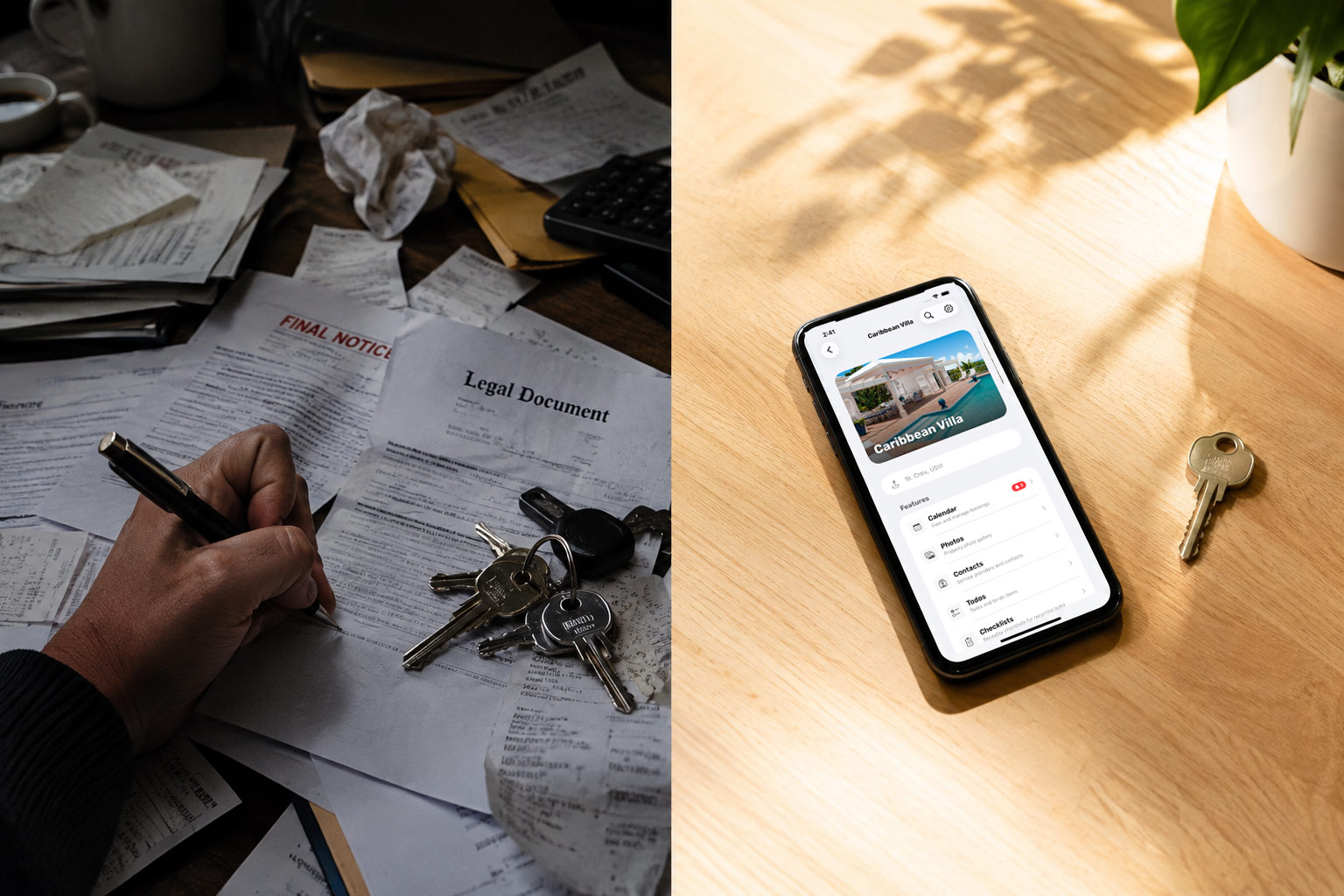
On paper, co-ownership looks simple. Two names on a deed. One shared bank account. A handshake agreement. In practice, shared ownership introduces an invisible layer of work — the management of shared expectations — and three distinct types of friction: the Financial Fog, the Logistical Load, and the Emotional Tax.

The closed test is over. OurSharedPlace for Android is now a public open beta — no tester list and no invitation needed. Install it from Google Play, sign in with the account you already have, and get the calendar, library, tasks, contacts, messages, finances, members, and guest access codes on your phone. Free for current subscribers.

You now own a house with the people you grew up with. Work through it in order: find out what you actually inherited, price it, then pick one of four paths — keep and share, rent it, buy someone out, or sell. Includes the buyout math, a co-ownership agreement checklist, how partition suits work, and a 90-day plan.

Give guests a clean way to send questions and report issues — and give yourself a tidy place to triage them. Guest Requests is a lightweight ticket lane separate from your private member discussions: each request has a status (open, in progress, resolved) and can be assigned to a specific member. It's off by default and enabled per property, so it only appears where you actually host guests.

Stop one person from claiming prime weeks two years out before anyone else gets a turn. Set a maximum booking window — a cap on how far ahead a check-out date can be — as a property-wide default, a per-member override, or a separate limit for public and guest inquiries. Zero means no limit; the server enforces it everywhere, including the iPhone app.

Turn on per-property check-in and checkout emails for your guests. Write a free-form message with merge fields, feature your how-to articles and checklists, and let OurSharedPlace send each one on schedule. Outside guests get a private, no-login portal code that activates before their stay and expires after — and works in the iPhone app too.
Use our contact form to reach our support team, or submit feedback through your dashboard.